
Make sure you are the Claude Code Tab
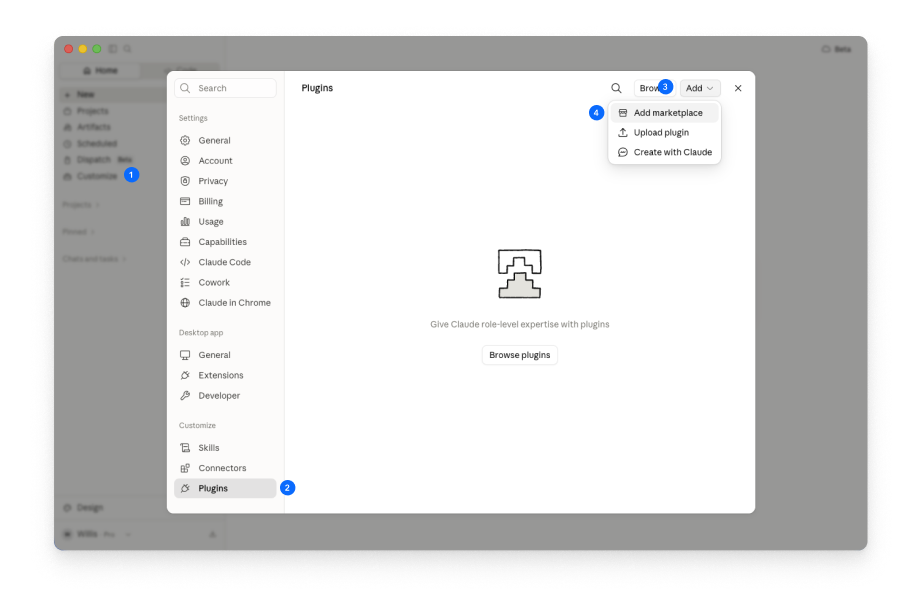
Go to Settings → Plugins → Add → Add Marketplace
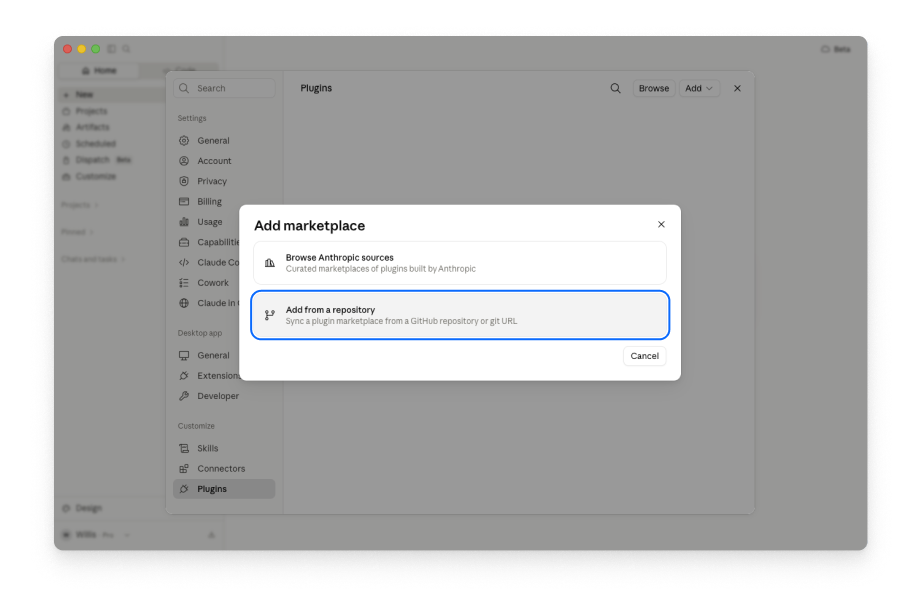
Choose Add from a repository
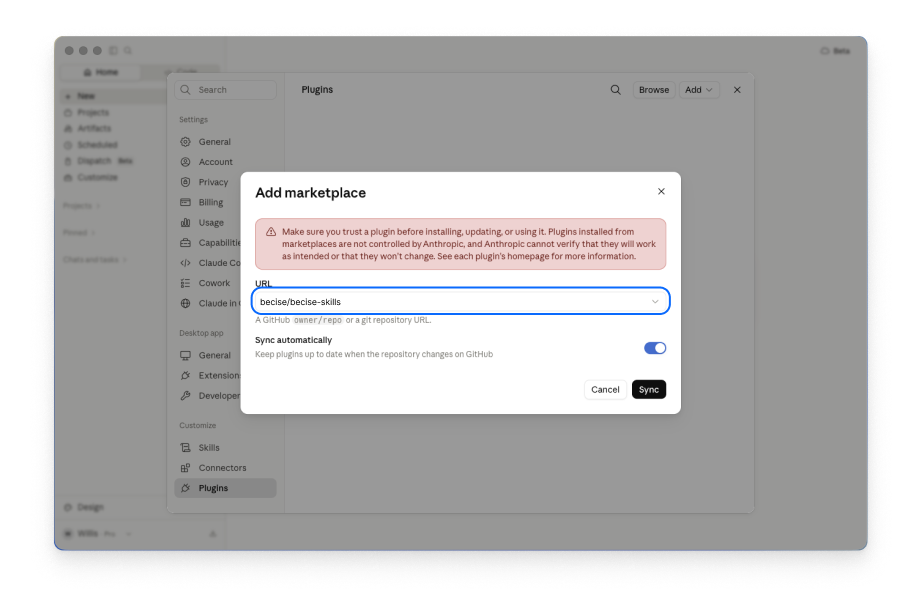
and fill in:
Marketplace URL
A list of plugins from that marketplace appears. Find Becise in the list and click Install next to it. Once it's done, Becise shows up as an installed plugin. If you're prompted to restart, restart Claude Desktop.
On the Connectors tab, navigate to Becise nd click Connect next to Becise. This will open your default browser window for you to log in to your Becise account
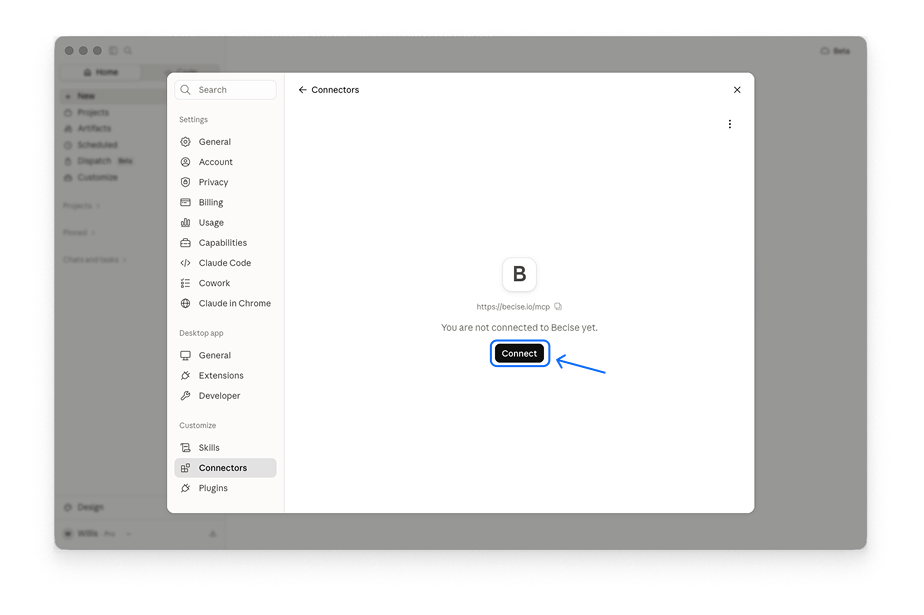
When you’re successfully logged in, back in Claude, Becise should now show as Connected.
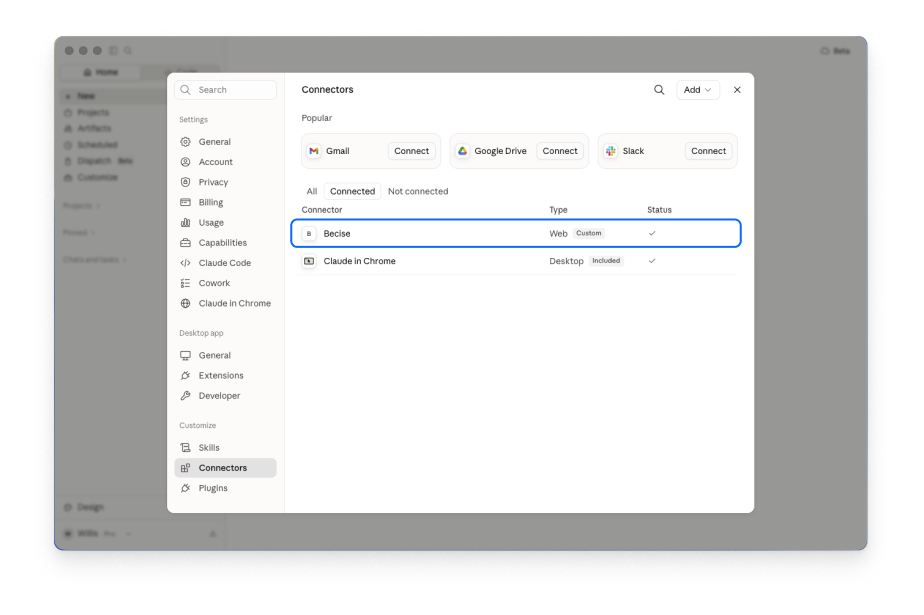
Once connected, attach a chart or slide (PowerPoint, PDF, or photo) to your chat and ask Claude to rebuild or improve it with Becise.
Prompt Examples:
"Fix this chart with Becise."
"Rebuild this slide with Becise."
Still inside Claude Code, run:
If Claude Code shows a prompt to reload plugins, run:
Type claude and press Enter to start Claude Code. Then type:
Select Becise, then Authenticate. A browser tab opens. Log in to your Becise account there. Back in the terminal, you should see "Authentication successful."
Attach a chart or slide (drag the file into the terminal window to insert its path, or type the path directly)
Prompt Examples:
"Fix this chart with Becise: [path]"
"Rebuild this slide with Becise: [path]"
